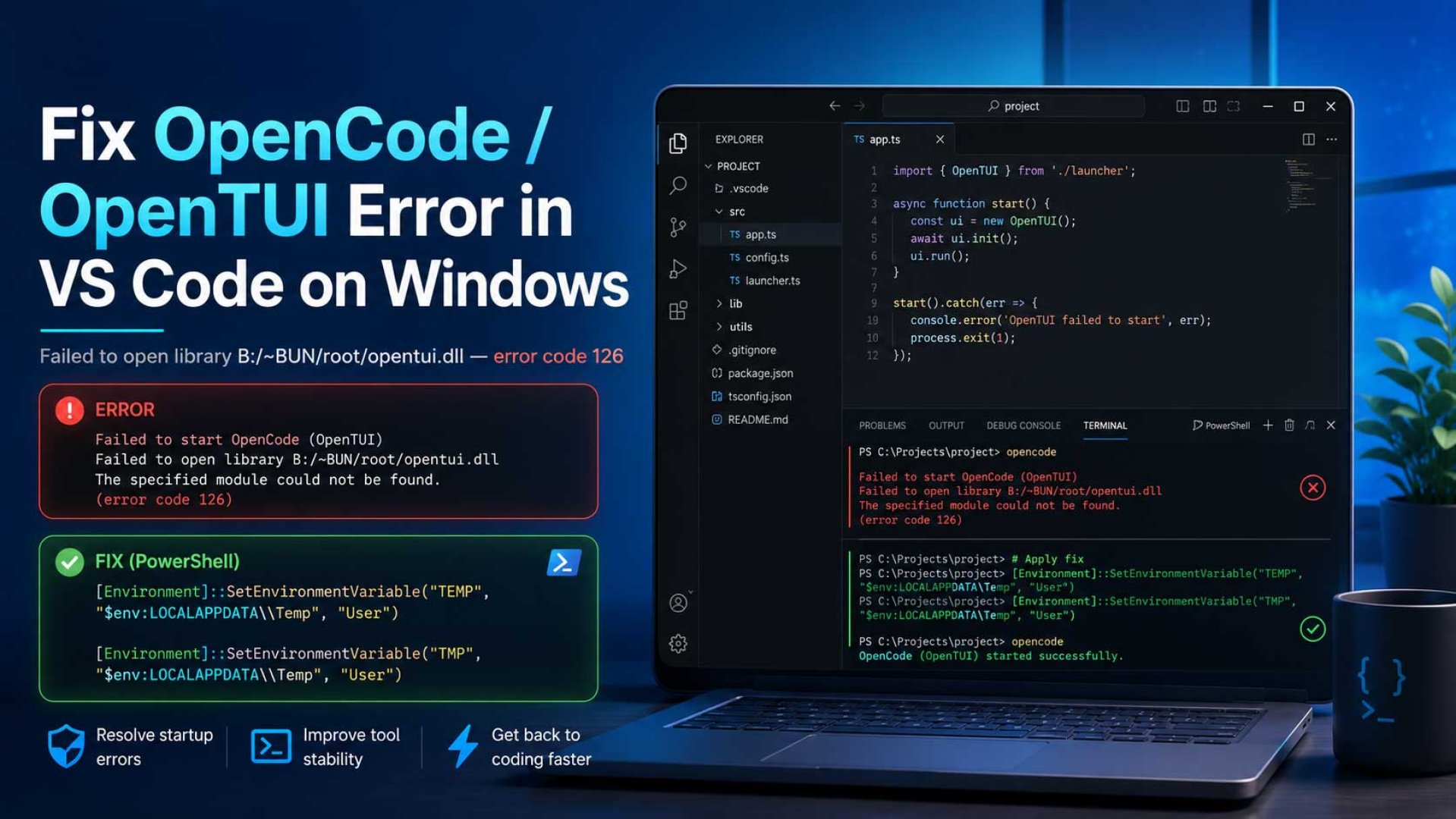
How to Fix OpenCode / OpenTUI Error in VS Code on Windows: Failed to Open Library B:/~BUN/root/opentui.dll
Recently, I tried running OpenCode AI inside the VS Code terminal on Windows. It worked fine when I launched VS Code using Run as Administrator, but when I opened VS Code normally, OpenCode failed to start and showed this error:
Error: Unexpected error, check log file at C:\Users\...\opencode\log\xxxx.log for more details

Failed to initialize OpenTUI render library: Failed to open library "B:/~BUN/root/opentui-a7anrm45.dll": error code 126
At first, this was quite confusing because the error pointed to this path:
B:/~BUN/root/opentui-a7anrm45.dllOn my machine, there was no active B: drive, Bun was not installed globally, and OpenCode itself was running from the user directory:
%USERPROFILE%\.opencode\bin\opencode.exeAfter trying a few things, I found that the issue was not related to my project, Node.js, or a broken OpenCode installation. The problem was related to the environment variables used by the VS Code terminal, especially TEMP and TMP.
The Problem
OpenCode failed when I ran it from the normal VS Code terminal:
opencode --print-logsThe log showed this error:
Failed to initialize OpenTUI render library:
Failed to open library "B:/~BUN/root/opentui-a7anrm45.dll": error code 126
However, if I opened VS Code as Administrator, OpenCode worked.
This was the clue. The issue was probably caused by a difference between:
- VS Code running normally
- VS Code running as Administrator
- PowerShell outside VS Code
- Windows user environment variables
What Might Be Causing It?
OpenCode uses OpenTUI to render its interactive terminal interface. On Windows, OpenTUI needs to load a native DLL so the terminal UI can run properly.
When OpenCode starts, the runtime tries to load that DLL. If the temporary directory or runtime cache path used by the terminal process is not correct, the DLL may fail to load and produce error code 126.
In my case, even though TEMP and TMP looked like they were pointing to the normal Windows temp directory, VS Code could still inherit an old or inconsistent environment.
The path shown in the error:
B:/~BUN/root/opentui-a7anrm45.dlldoes not always mean that the B: drive really exists. It may come from the bundled runtime used internally by OpenCode. However, this error can still be triggered by an incorrect or inconsistent temp environment.
The Fix That Worked
The fix was to force TEMP and TMP to use the correct Windows user temp directory.
Run this command in PowerShell:
[Environment]::SetEnvironmentVariable("TEMP", "$env:LOCALAPPDATA\Temp", "User")
[Environment]::SetEnvironmentVariable("TMP", "$env:LOCALAPPDATA\Temp", "User")
Then, for the currently running terminal session, also run:
$env:TEMP = "$env:LOCALAPPDATA\Temp"
$env:TMP  = "$env:LOCALAPPDATA\Temp"
Remove-Item Env:TMPDIR -ErrorAction SilentlyContinue
After that, try running OpenCode again:
opencode --print-logs
opencode
In my case, OpenCode started normally without needing to run VS Code as Administrator.
Check Your TEMP and TMP Values
To make sure the environment variables are correct, run:
echo $env:TEMP
echo $env:TMP
echo $env:LOCALAPPDATA
The output should look similar to this:
C:\Users\YourName\AppData\Local\Temp
C:\Users\YourName\AppData\Local\Temp
C:\Users\YourName\AppData\Local
If TEMP or TMP points to another drive, a RAM disk, a network location, or an unusual path, that may be the reason OpenTUI cannot load its DLL correctly.
VS Code Specific Fix
If OpenCode works after setting TEMP and TMP, but the error appears again when running it from VS Code, you can force the terminal environment directly from VS Code settings.
Open the Command Palette:
Ctrl + Shift + PThen search for:
Preferences: Open User Settings (JSON)Add this configuration:
"terminal.integrated.env.windows": {
  "TEMP": "C:\\Users\\YourName\\AppData\\Local\\Temp",
  "TMP": "C:\\Users\\YourName\\AppData\\Local\\Temp",
  "TMPDIR": null
}
Replace YourName with your own Windows username.
For example:
"terminal.integrated.env.windows": {
  "TEMP": "C:\\Users\\YourName\\AppData\\Local\\Temp",
  "TMP": "C:\\Users\\YourName\\AppData\\Local\\Temp",
  "TMPDIR": null
}
After saving the settings, close all VS Code processes:
taskkill /IM Code.exe /FThen open VS Code normally and test again:
opencode --print-logs
opencode
Check for a B: Drive or Bun Installation
In my case, the B: drive did not actually exist. But to make sure, run:
Get-PSDrive B -ErrorAction SilentlyContinue
Get-Volume -DriveLetter B -ErrorAction SilentlyContinue
subst
net use
If you have a mapped B: drive, RAM disk, or virtual drive, it may be related to this error.
You can also check whether Bun is installed globally:
where.exe bunIf Bun is not installed, the result usually looks like this:
INFO: Could not find files for the given pattern(s).This means the error is not necessarily caused by a global Bun installation. It is more likely related to how OpenCode internally loads its native runtime DLL.
Check Where OpenCode Is Running From
To check the OpenCode binary location, run:
where.exe opencode
Get-Command opencode -All
The output may point to a user-level folder like this:
%USERPROFILE%\.opencode\bin\opencode.exeThis means OpenCode is running from the user-level binary, not from npm global or Bun global.
Conclusion
If OpenCode fails on Windows with this error:
Failed to initialize OpenTUI render library:
Failed to open library "B:/~BUN/root/opentui-a7anrm45.dll": error code 126
and it only works when VS Code is opened as Administrator, the issue is most likely related to the terminal environment, especially TEMP and TMP.
The fix that worked in my case was:
[Environment]::SetEnvironmentVariable("TEMP", "$env:LOCALAPPDATA\Temp", "User")
[Environment]::SetEnvironmentVariable("TMP", "$env:LOCALAPPDATA\Temp", "User")
And for VS Code, I forced the terminal environment through settings.json:
"terminal.integrated.env.windows": {
  "TEMP": "C:\\Users\\YourName\\AppData\\Local\\Temp",
  "TMP": "C:\\Users\\YourName\\AppData\\Local\\Temp",
  "TMPDIR": null
}
After restarting VS Code, OpenCode worked normally without needing to run it as Administrator.
The main takeaway: don’t use Run as Administrator as the permanent fix. If a CLI tool only works as Administrator, it usually means there is an environment or permission issue that should be fixed from the source.